Layer Styling
StyleCore uses QML files to style newly added QGIS layers consistently. Shared rules are maintained centrally while Personal Overrides stay local.
1. Create a QML style
- Style a layer under Layer Properties → Symbology / Labels.
- Export its style as a
.qmlfile in the configuredlayer_stylesfolder. - If the QML filename matches the layer name, no additional rule is needed.
- Add a new matching layer to test it.
2. Automatic style selection
| Priority | Source | Example |
|---|---|---|
| 1 | Personal Override | Your own Buildings.qml |
| 2 | Shared automatic layer style | Buildings → Office_Buildings.qml |
| 3 | File Suffix Rule | survey-points.geojson → Points.qml |
| 4 | Matching QML filename | Roads → Roads.qml |
3. Shared automatic layer styles
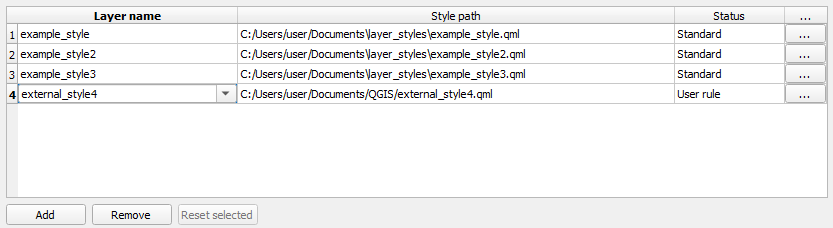
- Open Settings → Options → StyleCore and enable Developer Mode.
- Add or select a row in Shared automatic layer styles.
- Enter the layer name and QML, save with the developer code, then test with a new layer.
4. File Suffix Rules
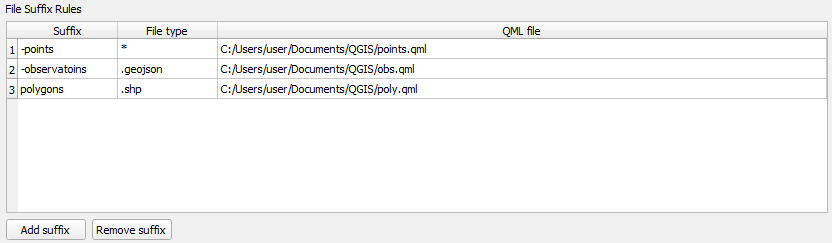
- Open Developer → File Suffix Rules and click Add suffix.
- Enter the suffix, file type, and QML file, then save with the developer code.
- Test with a matching file-based layer.
| Suffix | File type | QML | Matches |
|---|---|---|---|
-points |
* |
points.qml |
test-points.geojson |
-observations |
.geojson |
obs.qml |
well-observations.geojson |
5. Personal Overrides
Personal Overrides affect only your own setup, not the shared rules used by your colleagues.
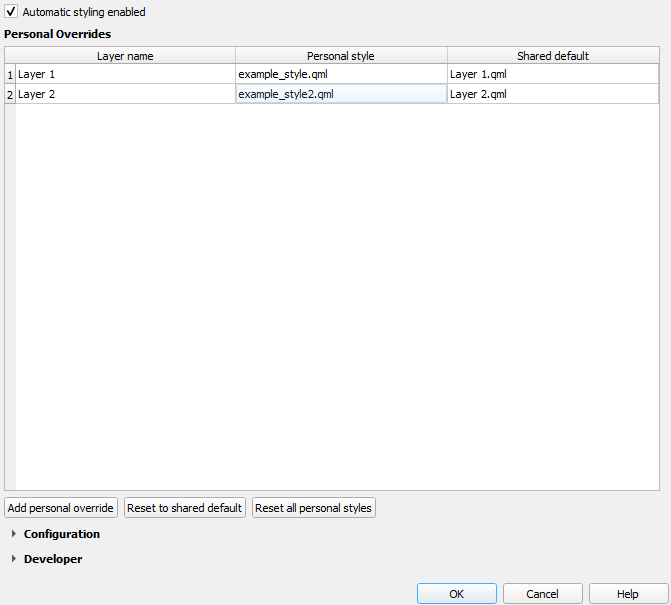
- Open Settings → Options → StyleCore → Personal Overrides.
- Click Add personal override, choose a layer name and QML file.
- Save and test with a new layer. Use Reset to shared default or Reset all personal styles to undo.
6. Manual Style Update — existing layers
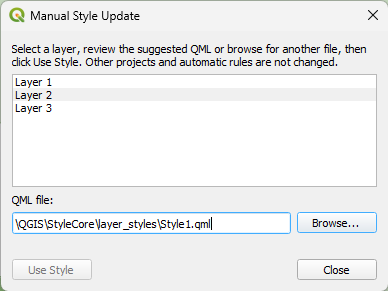
- Open StyleCore → Manual Style Update….
- Select an existing layer.
- Review the suggested QML or choose a different one with Browse….
- Click Use Style, then save the QGIS project. This does not modify shared automatic rules.
7. Save shared QML from QGIS

- Style the layers in QGIS and open Save layer styles….
- Select only the layers to save.
- Confirm destination, developer code and any overwrites.
- Test with a newly added layer or a template.