Basic Usage
Once a configuration has been loaded, StyleCore works alongside normal QGIS workflows. You do not need Developer Mode to use shared resources.
1. Check your setup
- Open StyleCore → Settings….
- Confirm that the correct configuration is active.
- If you need to create or repair a configuration, see Configuration – In QGIS.
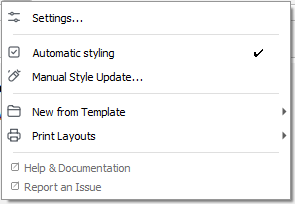 The StyleCore menu provides quick access to settings, Automatic Styling, templates, layouts and help.
2. Add layers and use automatic styling
- Make sure Automatic Styling is enabled in the StyleCore menu.
- Add a layer to QGIS as usual.
- If a matching QML is available, StyleCore applies it.
- If no rule or matching QML exists, the layer keeps its normal appearance.
3. Start a project from a shared template
- Open StyleCore → New from Template.
- Choose a template.
- Work in the new project.
- Use Save As to save your own project under a new name.
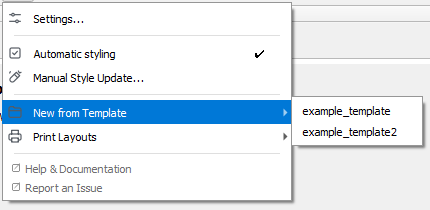 Templates are opened directly from the StyleCore menu.
4. Add a print layout
- Open StyleCore → Print Layouts.
- Choose a layout.
- QGIS Layout Designer opens with a new layout in your project.
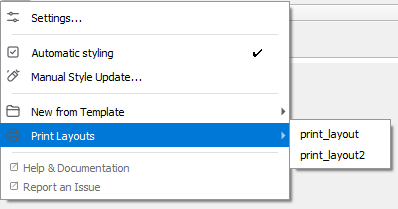 Available print layouts are listed directly in the StyleCore menu.
5. Use your own style or update an existing layer
- Personal Override: assign your own QML to a layer name in Settings → Options → StyleCore → Personal Overrides.
- Manual Style Update…: select an existing layer and apply a chosen style deliberately.
Neither action changes the shared team setup.
6. Get help
Use StyleCore → Help & Documentation or Report an Issue, or consult Troubleshooting.