Configuration – In QGIS
A configuration is the JSON file that tells StyleCore where to find shared styles, project templates, print layouts and optional fonts. This page explains the practical workflow inside QGIS. For the fields stored in the JSON itself, see Configuration JSON.
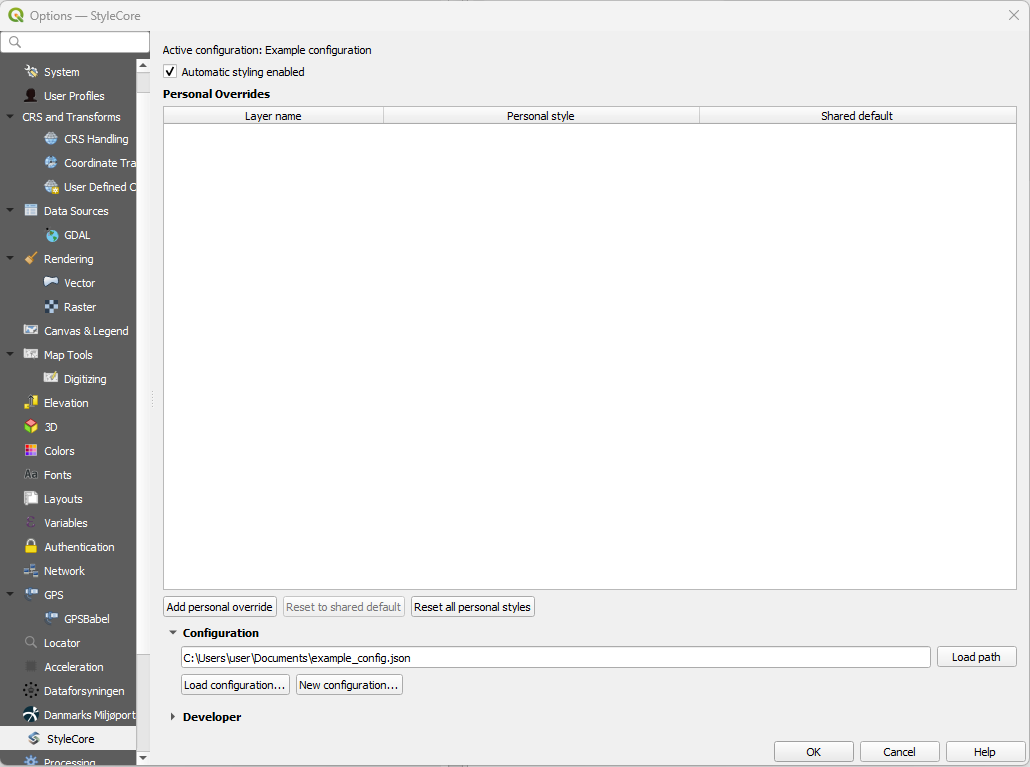
1. Load an existing configuration
Use this when a colleague has already created the shared setup.
- Connect to the required shared drive, VPN or network location.
- Open Settings → Options → StyleCore.
- Expand Configuration.
- Use Load configuration… and browse to the JSON file, or paste the full path in the field and click Load path.
- Confirm the name under Active configuration.
- Test the configuration from the StyleCore menu, for example New from Template or Print Layouts.

Share a path, not separate copies
Colleagues should normally load the same shared JSON file. Shared behavior belongs in that file. Personal Overrides stay in each user's local QGIS profile.
2. Create a new configuration
Use this once when you are setting up StyleCore for a team or for yourself.
- Open Settings → Options → StyleCore → Configuration.
- Click New configuration….
- Enter a Name.
- Choose the Configuration file path.
- Decide how the resource root should work:
- Recommended: keep Use configuration file folder as resource root enabled.
- Alternative: disable it and choose a separate Root folder.
- Keep or rename the three default resource folders: Styles, Templates and Print layouts.
- Enter and confirm the Developer code.
- Click Save configuration.
- Put your actual resource files into the created folders.
- Test the configuration and then share the JSON path with colleagues.
Recommended: JSON folder also acts as resource root
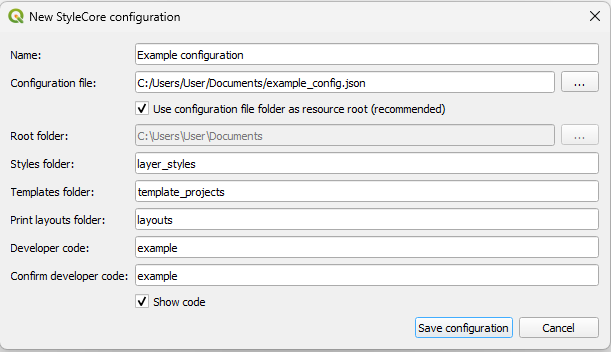
Typical structure:
StyleCore/
├── office.json
├── layer_styles/
├── template_projects/
├── layouts/
└── fonts/                # optional, create manually if needed
Alternative: separate resource root
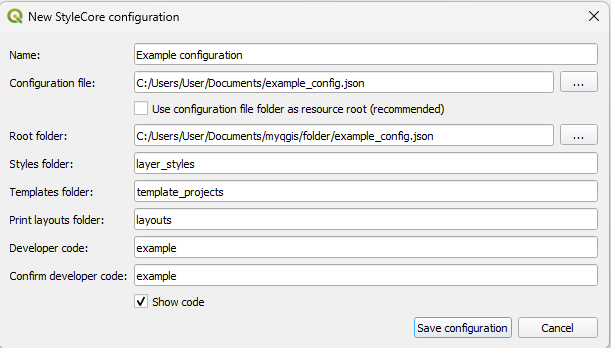
This setup is useful when:
- the JSON file is distributed separately,
- the shared resources already exist in another folder,
- or the team wants to keep the configuration file and the actual resources apart.
3. Add or update shared resources
After creating the configuration, StyleCore creates the folder structure, but not the actual content. Add the resources yourself:
- Styles: Put
.qmlfiles in the styles folder. If the layer name and QML filename differ, add rules in Developer settings. See Layer Styling. - Templates: Put
.qgs/.qgzfiles in the templates folder, or add external template references. See Project Templates. - Print layouts: Put
.qptfiles (and matching.svgfiles if used) in the layouts folder. See Print Layouts. - Fonts (optional): Create a
fontsfolder at the root and add licensed.ttf/.otffiles there.
4. Switch or reload a configuration
- Return to Settings → Options → StyleCore → Configuration.
- Load the required JSON file.
- Confirm the active configuration name.
- Test a known template, print layout or layer style.
Use this after a colleague changes shared settings or when you move between different office / field / test setups.
5. Move or rename a configuration or shared drive
- Identify what changed:
- the JSON file location,
- the resource root location,
- or referenced template / data paths.
- If the JSON file folder is also the resource root, move the JSON together with its resource folders.
- If the configuration uses a separate root folder, a maintainer must update that root in Developer.
- Have each colleague reload the JSON if the JSON file path changed.
- Test templates, styles, layouts and fonts afterwards.
See Troubleshooting – Moved folders or network drives.
6. Maintain shared settings for a team
Ordinary users mainly need the configuration path. Maintainers also need Developer Mode.
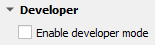
Use Developer Mode when you need to:
- change the shared resource root,
- maintain shared layer rules,
- maintain File Suffix Rules,
- maintain template availability,
- or save shared QML styles.
Those tasks are described in detail in Developer Tools and Configuration JSON.