Project Templates
A project template is a reusable QGIS project (.qgs / .qgz) with predefined layers, map settings and styling. StyleCore reads templates directly from their source locations; it does not copy them into each user's local QGIS template folder.
1. Open a template as a new project
- Open StyleCore → New from Template.
- Choose a template from the list.
- StyleCore opens it as a new, unsaved QGIS project.
- Make your changes.
- Use Save As to save your own project under a new name.
This protects the shared original.
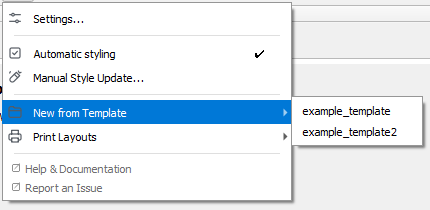 Users open templates from StyleCore → New from Template.
2. Create a new shared template
- Build the project you want to reuse.
- Check that data sources, layers and defaults are suitable for colleagues.
- Save it as
.qgsor.qgzin the configured templates folder. - Organize templates in subfolders if needed.
- Test the result from StyleCore → New from Template.
- In Developer settings, confirm that the template is Active and decide whether it should use Refresh.
3. Link an external template
Use this when the template should stay outside the normal templates folder.
- Open Settings → Options → StyleCore.
- Enable Developer Mode.
- In Templates, click Add external template….
- Enter a name and choose the
.qgs/.qgzfile. - Save with the developer code.
- Test it from New from Template.
4. Control Active and Refresh
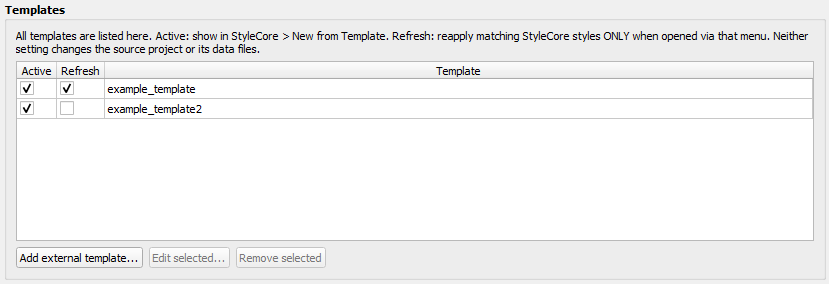 The Templates table is where maintainers decide which templates appear in the menu and which ones should refresh matching styles.
| Active | Refresh | Result |
|---|---|---|
| On | Off | Shown in the menu and opened with its saved styles |
| On | On | Shown in the menu and opened with matching styles refreshed |
| Off | Either | Hidden from the menu |
- Open Developer → Templates.
- Find the template.
- Tick Active if it should be visible.
- Tick Refresh if matching styles should be reapplied when the template is opened through StyleCore.
- Save with the developer code.
5. Update or move an existing template
- Open the source QGS / QGZ, not somebody's saved project.
- Make the changes and save the source file.
- If the file was moved or renamed, update the reference in Developer → Templates if needed.
- Test it from New from Template.
- Use Save As for test output.
Important: Refresh only runs when the template is opened through StyleCore → New from Template and Automatic Styling is enabled.