Print Layouts
StyleCore opens shared QGIS layout templates (.qpt) from your configured layouts folder.
1. Open a layout
- Set your map extent in QGIS.
- Choose StyleCore → Print Layouts and select a layout.
- A new layout opens in QGIS Layout Designer. Adjust it and export or print.
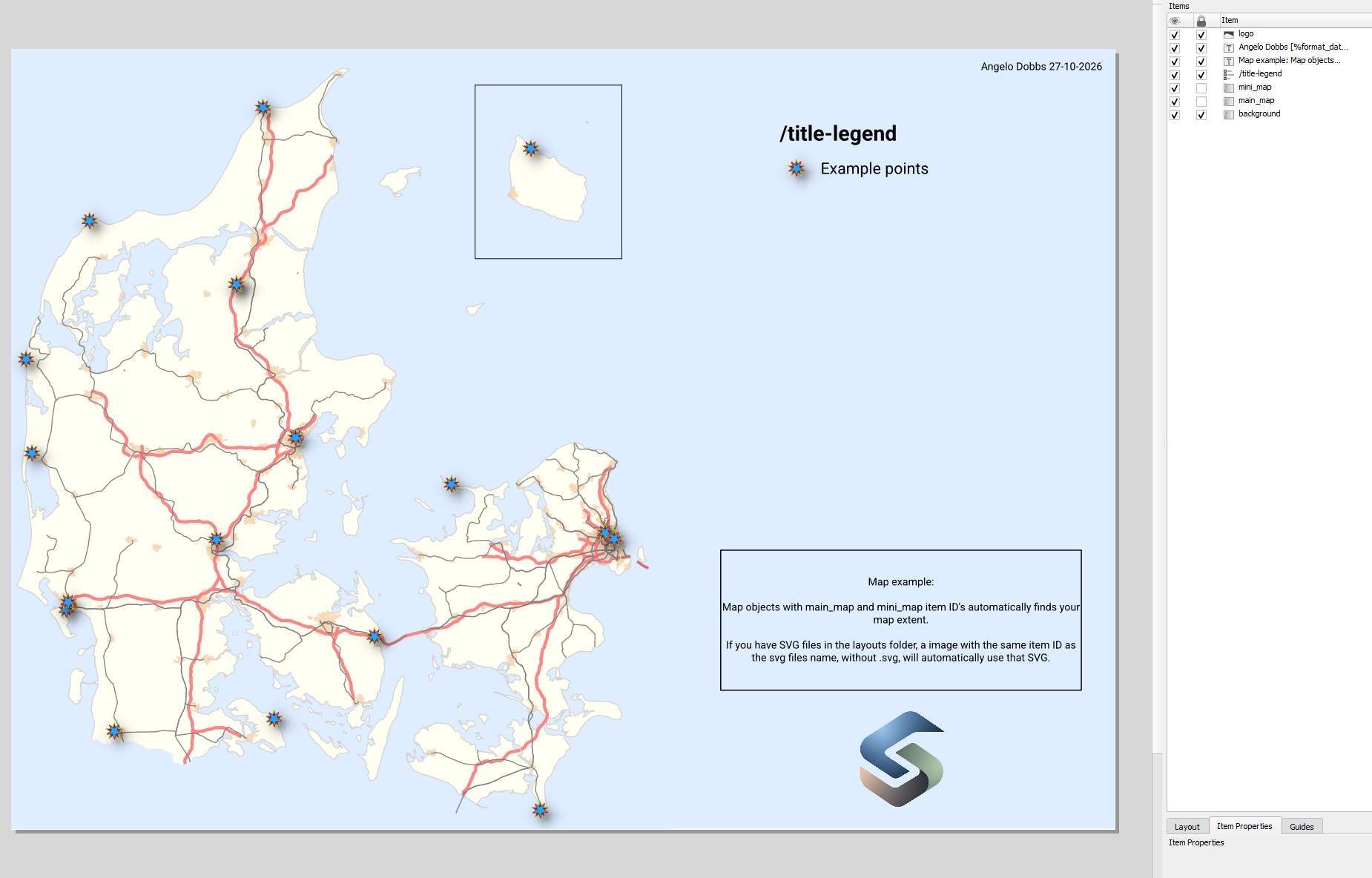 Example of a shared layout opened through StyleCore.
2. Create a layout template
- In QGIS, choose Project → New Print Layout and add maps, legends and images.
- Assign the Item IDs described below to any elements you want StyleCore to handle automatically.
- Export as
.qptand save it in the sharedlayoutsfolder alongside any referenced SVG files. - Test the QPT through StyleCore → Print Layouts.
3. Item IDs
Assign Item IDs in QGIS Layout Designer → Item Properties. These names control how StyleCore fills or updates layout elements.
| Item ID | Example | What it does |
|---|---|---|
main_map |
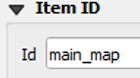 |
Uses the current QGIS canvas extent for the main map and activates Move Item Content where supported. |
mini_map |
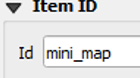 |
Also uses the current canvas extent, but does not automatically create an overview relationship. |
logo |
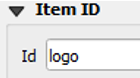 |
On a Picture item, loads an SVG file with the same basename from the layouts folder. |
4. SVG picture items
Assigning a correct Item ID, will make StyleCore look in the layout folder for a matching .svg.
The Picture Item ID must match the SVG filename without .svg.
logo→logo.svgnorth_arrow→north_arrow.svgcompany_mark→company_mark.svg

5. Update an existing template
Edit the source layout, export a new .qpt to the shared folder, and test it by creating another layout through StyleCore. Layouts already saved in projects are not replaced automatically.
See Configuration for the resource folder and Troubleshooting if files cannot be found.